
Your email account can fill up over time with old messages and attachments (like photos and PDFs). If your email quota has been reached, the email server will stop accepting incoming emails, and the sender may or may not realize that their email to you wasn’t delivered. Also some newsletters (including SignupGenius) will remove you from their distribution list if even one of their emailings to you is not deliverable.
This tip describes some things you can do to safely clean up your mail, depending on which service you use (Gmail, iCloud, Outlook/Hotmail, Shaw, Yahoo). Make it a New Year’s resolution to do some cleanup!
Generally speaking, you should start by focusing on the largest emails, typically ones with attachments (photos or otherwise). Sorting your email based on size, with the largest on top, makes this easy. You will probably also want to prioritize recent emails over older ones which may no longer be relevant. Starting your cleanup with the Sent folder is a good idea, because email attachments in sent mail are likely also stored elsewhere on your computer. (Note that due to the idiosyncrasies of email syncing, you may have more than one Sent folder.) The sorting tools available are dependent on which email service you use.
Gmail / Telus email
What Archive means in Gmail
It is important to understand what Archive means in Google Mail. Archive is not a separate label/folder, as it is with other email servers. With Gmail, archived email is everything that is not in the Inbox (or Trash and Spam/Junk), so it includes Sent email, Drafts, and email that has a user-assigned label such as “Jokes” or “HouseRepairs”. When you select All Mail in Gmail that includes the Inbox plus the Archive.
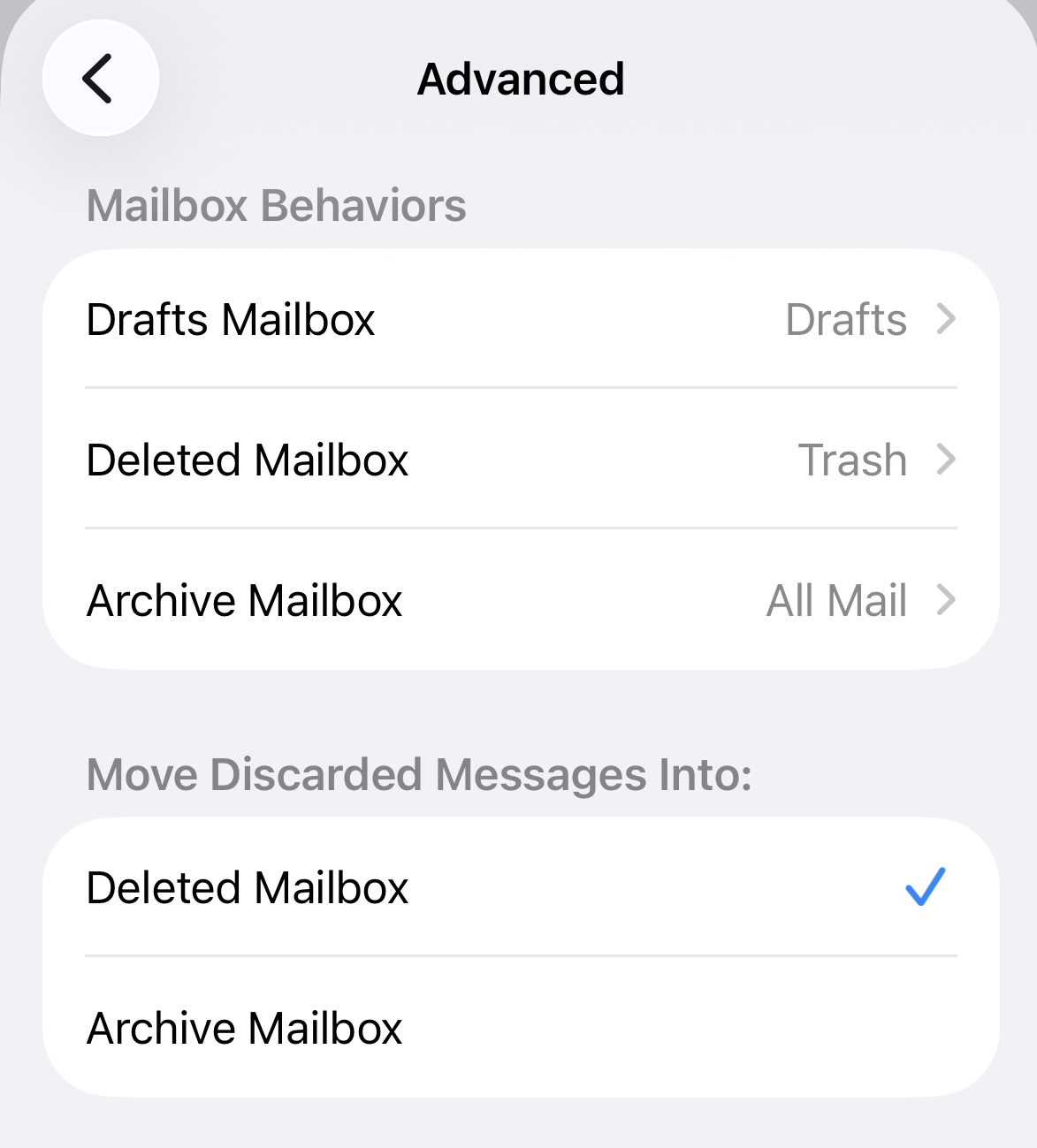
When you archive an email, it is still taking up space on the server. If you want to free up space on the server, you need to Delete rather than Archive. This can be confusing on an iPhone, because when you add a Gmail account to Apple Mail on an iPhone, it defaults to archiving rather than deleting. To change this behaviour, go to:
Settings > Apps > Mail > Mail Accounts > Gmail > Account Settings > Advanced
and choose to Move Discarded Messages into Deleted Mailbox rather than to Archive Mailbox.
Cleaning Up Gmail
Following are some hints for cleaning up your Gmail and your Telus email (which also uses Gmail). Some of these commands are particularly useful for deleting emails which you archived when you intended to delete.
On a computer (not your iPhone), in your favourite browser (Safari/Chrome/Edge), go to: mail.google.com and log in with either your Telus address or your Gmail address, depending on which one you want to cleanup.
If you want to view only Sent emails, in the search bar on top, type:
label:sent
You can then select items one by one, or All, or a range (click on the first one, then shift-click the last one) and hit the trashcan to delete.
If you have been archiving emails when you intended to delete, you may want to view those emails. You may think that the search term in:archive would show you only emails which you chose to Archive, but as noted above Gmail “archive” includes everything that is not in the Inbox. If you don’t want to include emails that have user-assigned labels, you would add -has:userlabels, or if you want to exclude the sent box you would add -label:sent. (The minus sign is important!) So the following search string can be used to view emails that you archived, without including Sent and labeled emails:
in:archive -has:userlabels -label:sent
You can also limit the search to older emails by typing
older_than:2y
to list emails that are more than 2 years old.
Or if you want to focus your cleanup on large emails, in the search bar you can type:
larger:10M
which would list very large emails classified as Archive (not in Inbox).
Or you can choose only emails with attachments:
has:attachment
Or you can choose a specific sender (you don’t need to include the full email address):
from:papertrail
and of course you can combine these search terms:
in:archive older_than:2y has:attachment larger:10M from:papertrail
Maybe start with:
in:archive -has:userlabels larger:10M
or
in:archive from:papertrail
either of which won’t list very many, but this will give you some confidence that you are only selecting emails that were archived, not emails in your Inbox.
Gmail uses your overall Google storage, not a separate email quota. Free Google accounts include 15 GB, shared with Google Drive and Photos. You can check usage at one.google.com/storage or at the bottom of Gmail’s sidebar.
Note that you do not need to empty your Trash, emails there will be automatically deleted after 30 days. You can of course empty the Trash if you don’t want those emails counting against your storage limit.
Similarly, emails in Spam will be automatically deleted after 30 days.
Outlook Email / Hotmail
As with Gmail, the best way to clean up Outlook/Hotmail is using the webmail interface, outlook.live.com/mail.
To show only emails with attachments, in the Search bar type:
hasattachments:yes
To show only old mails, in the Search bar type, e.g.:
received:<01/01/2022
To show only emails from or to a specific sender, in the Search bar type, e.g.:
from:papertrail@canmoreseniors.org
You cannot enter size: in the search string, but to make it easier to focus your cleanup on the largest emails, you list your emails with the largest on top – click on the Sort button:
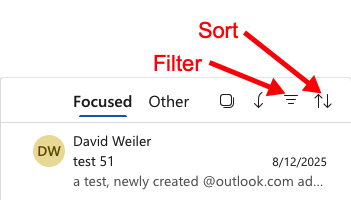
in the column header and select Sort by Size (e.g.).
Outlook.com and Hotmail accounts have a 15 GB email storage limit. You can see your usage in Outlook webmail under Settings > General > Storage.
Microsoft automatic deletes Outlook/Hotmail emails in Trash after 30 days, and emails in Junk after 10 days, so you do not need to manually empty these folders, although they will count against your quota until deleted.
iCloud Mail
iCloud webmail, i.e. icloud.com/mail does not provide helpful tools for cleaning up your email. The best cleanup tools for this are on a Mac. The tools available in the MacOS Mail app can be used to cleanup any of your email accounts (including Gmail), not just iCloud mail.
On a Mac, your emails are automatically sorted by date, newest on top. But if you, say, want to cleanup large emails, one way to do it is to sort by Size,
Mail > View > Sort by > Size
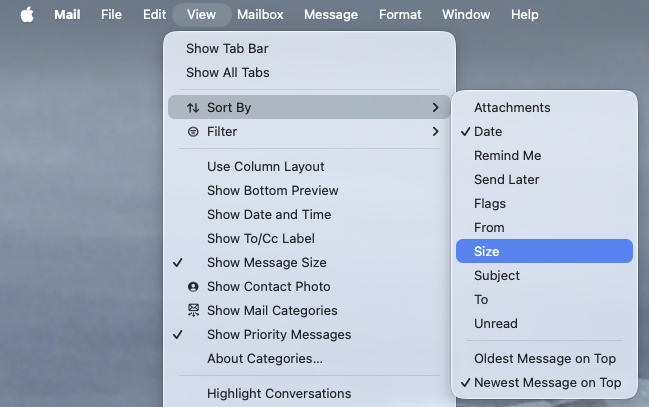
This will list the largest emails on top, showing the size in MB, allowing you to focus your cleanup efforts on the biggest offenders. You can choose emails individually to either delete or move to another folder.
On a Mac you can also use smart mailboxes to aid in cleanup. E.g. to create a Smart Mailbox that includes only emails older than years:
Select: Mail > Mailbox > New Smart Mailbox…
Smart Mailbox Name: Old Mail (over 2 years)
Condition: Data received is not in the last 2 years
You can limit this to your iCloud account, or include all of your accounts. For some reason there is not an option to include messages above a specified size, but you can choose to include only messages with attachments.
In the left sidebar in MacOS Mail, besides your email accounts (iCloud, Gmail, etc.) you will see On My Mac. If you want to remove entire folders from the email server (e.g. iCloud) you can drag the folder into On My Mac, which as the name suggests moves the email from email server to local storage on your Mac. Of course if you do that, the folder will no longer be accessible from your iPhone/iPad.
iCloud Mail uses your overall iCloud storage, not a separate email quota. Free iCloud accounts include 5 GB total, shared with photos, backups, and files — so very limited, most iCloud email users will need to pay for extra storage. You can see usage under iCloud > Manage Storage on your device or at iCloud.com.
Apple automatic deletes iCloud emails in Trash after 30 days, and emails in Junk after 30 days, so you do not need to manually empty these folders.
Yahoo Mail
For Yahoo mail cleanup, go to mail.yahoo.com.
Yahoo supports some typed search operators, but fewer than Gmail.
From a sender from:papertrail
To a recipient to:me
Subject contains subject:invoice
Has attachments has:attachment
Date before before:2022/01/01
Date after after:2023/01/01
Yahoo doesn’t have a search term for “size”, but to focus your email cleanup where it matters most you can sort the emails so as to list largest emails on top.
Free Yahoo email accounts have a storage limit of 20 GB. To view your usage, sign in at mail.yahoo.com, hover over your profile icon in the upper right. A small popup will show Storage with how much you’ve used and how much is available right beneath it.
Yahoo automatic deletes emails in Trash after 7 days, and emails in Junk after 30 days, so you do not need to manually empty these folders.
Shaw Mail
Shaw Webmail (now under Rogers), webmail.shaw.ca, uses a simple search model, not command-based operators. You can search on a text string, and it will look for that text in:
- Sender
- Recipient
- Subject
- Message body
but that level of functionality has only limited usefulness for email cleanup.
Shaw webmail apparently does not (?) have a way to sort by size, which makes it hard to focus your cleanup on the largest “offenders”. What you can do is look for emails with attachments (as indicated by a paperclip icon). You can start with your Sent folder, as you likely have copies of large email attachments saved elsewhere.
If you use Apple Mail or Windows Outlook to view your Shaw email, both provide an option to Sort by Size, allowing you to focus your cleanup on the emails that are using the most storage space.
With Shaw email, the storage limit is 2 GB. Your usage is displayed in the lower left corner of webmail.shaw.ca.
Rogers automatic deletes Shaw emails in Trash after about 30 days, and emails in Junk after about 30 days, so you do not need to manually empty these folders, although they will count against your quota until deleted.